Troubleshooting and Maintenance Tips for TW VISION LED Panel Systems

Reliable operation of TW VISION LED panel systems depends on careful attention to both routine maintenance and systematic troubleshooting when issues arise. This article distills proven techniques for diagnosing common problems, maintaining optimal performance, and extending the life of your led display. The guidance is vendor-agnostic where possible but tailored to typical TW VISION hardware characteristics: modular LED panels, external power supplies, wired data distribution (sending/receiving cards), and integrated control software.
Troubleshooting and Maintenance Tips for TW VISION LED Panel Systems
Understanding the system architecture
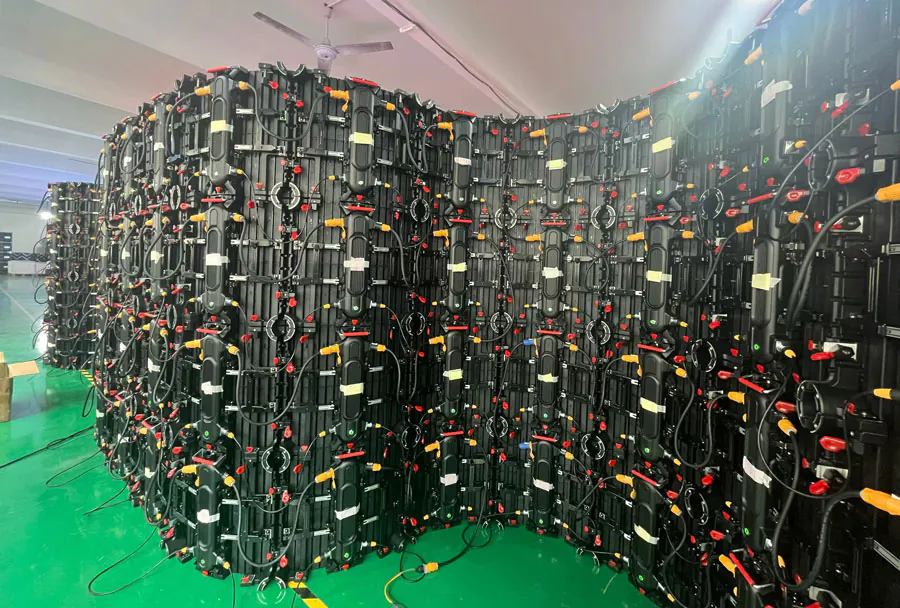
Start by knowing the basic architecture: the control server sends video data through a sending card to receiving cards located in each cabinet or display module, which then drive LED pixel modules. Power supplies deliver stable DC to modules and driver ICs. Temperature sensors, fans or HVAC, and environmental sealing influence long-term reliability. Identifying which layer the problem originates from (content/source, control/sending card, receiving card/panel, power, or physical module) greatly speeds troubleshooting.
Initial triage: Gather symptoms and context
When an issue appears, collect these essentials before taking action: exact symptom (e.g., no image, flicker, color shift, dead pixels), when it began, recent changes (firmware updates, cabling, weather), and error indicators (LEDs on cards/power supplies, control software logs). That context often points directly to the root cause. If multiple panels fail simultaneously, suspect central components (sending card, control server, main power feed). If failures are isolated to one cabinet or region, focus on that cabinet’s power/data chain and the receiving card.
Common problems and step-by-step troubleshooting
– No image on whole display: Verify source and network/video feed first. Check sending card status LEDs and software connection. Confirm AC mains to distribution breakers, then DC bus voltages from power supplies. If the sending card is unresponsive, swap with a known-good unit or test sending card output with a simple test pattern.
– Partial display or regional blackout: Inspect data connectors and ribbon cables between receiving cards and modules. Loose RJ45, HDMI extenders, or mis-seated receiving cards are frequent causes. Swap the receiving card to test.
– Flickering or intermittent brightness: Check power supply voltages for ripple or instability. Measure voltage under load; excessive ripple suggests failing caps or weak PSUs. Also verify grounding and ensure no large fluctuating loads on the same circuit.
– Color mismatch or uniformity issues: Run calibration software and verify color lookup tables. Aging LEDs and inconsistent driveline voltages cause shifts—use brightness/contrast calibration and check for a failing color channel at the module level.
– Dead pixels or lines: Inspect solder joints and connector pins for corrosion or mechanical damage. Replace the affected module if individual LEDs or driver ICs are faulty. Use software pixel-mapping to isolate physical failures.
– Controller software errors: Keep firmware and control software versions documented. If an update introduced errors, roll back to the previous stable version while investigating release notes.
Preventive maintenance schedule
Establish a regular maintenance cadence to reduce emergency repairs and improve lifespan:
– Daily: Visual inspection for obvious physical damage, error lights, or content anomalies.
– Weekly: Check control software logs and power supply temperatures; ensure fans or ventilation are functioning.
– Monthly: Tighten accessible connectors, test redundancy circuits (if implemented), and run a uniformity test pattern for color/brightness.
– Quarterly: Inspect cabling routes, clean filters, and perform calibration passes. Update firmware only after QA validation in a staging environment.
– Annually: Replace aging consumables (fans, electrolytic capacitors in PSUs older than 5 years), perform full color calibration, and document any module swaps or repairs.
Essential tools and spare parts
Keep a basic toolkit and commonly needed spares on hand to minimize downtime:
– Multimeter for DC voltage and continuity checks.
– Portable test pattern generator or laptop with control software.
– ESD-safe tools and wrist strap for module handling.
– Spare receiving and sending cards, at least one spare power supply, a sample panel module, and common connectors/cables.
– Cleaning supplies: lint-free cloths, isopropyl alcohol, compressed air.
Cleaning, environmental control, and physical care
Dust and moisture are leading causes of failure. Clean surfaces gently with a lint-free cloth and 70% isopropyl alcohol. Avoid high-pressure air near LED diodes—use short bursts to remove loose dust. Ensure adequate ventilation and maintain stable ambient temperature and humidity per TW VISION specifications (typically 0–40°C operating, 10–90% non-condensing humidity for indoor units; outdoor units need IP-rated sealing and active drainage). For outdoor displays, check seals and gaskets seasonally and clear any drainage paths.
Firmware, software, and configuration management
Maintain a version-controlled inventory of firmware and software. Before applying updates to production displays, test them in a mirrored or staging setup. Keep backups of configuration files and pixel-mapping profiles. If configuration volatility is suspected (intermittent changes), implement change-control procedures and restrict access to authorized personnel.
Safety and ESD handling
Always power down and bleed capacitors where necessary before probing power distribution. Use lockout/tagout procedures when working on high-voltage components. Handle LED modules and driver boards in ESD-safe conditions—wear wrist straps and work on grounded mats. Corrosion from electrolytic capacitor failure is common in long-service PSUs; visually inspect for bulging or leakage.
When to replace modules vs. repair
Repair is economical for small, isolated failures (single module, a few pixels, connector replacement). Replace modules or entire cabinets when:
– Multiple boards within a module are failing.
– Long-term service and calibration cost exceed the replacement value.
– Physical damage or water ingress compromises the module’s IP integrity.
Document all module replacements to maintain warranty traceability and lifecycle planning.
Working with TW VISION support and warranty considerations
Collect clear diagnostic evidence before contacting technical support: photos, logs, LED indicator statuses, voltages, and affected panel serial numbers. Follow warranty procedures to avoid voiding coverage—don’t open sealed modules if that is restricted under warranty terms. Use authorized spare parts and certified technicians for in-warranty repairs.
Common mistakes to avoid
– Jumping to module replacement without isolating the data/power chain—often a receiving card or cable is at fault.
– Updating firmware on production displays without testing—this can introduce new bugs or compatibility issues.
– Neglecting environmental protection—dust ingress and thermal cycling quietly degrade performance.
– Ignoring control software logs—these frequently contain the earliest indicators of trouble.
Analysis Table: Troubleshooting Summary (5 columns)
| Symptom | Likely Cause | Immediate Diagnostic Step | Recommended Fix | Preventive Action |
|---|---|---|---|---|
| No image (entire display) | Sending card failure, control server issue, mains power loss | Check control software connection, sending card LEDs, main AC breakers | Restart control server, reseat/replace sending card, restore power | Redundant sending card, UPS for control server, power monitoring |
| Partial blackout (one cabinet/zone) | Receiving card, data cable, or local PSU failure | Swap receiving card with adjacent unit, check network/data continuity | Replace receiving card or cable; repair connector pins | Regular connector inspection, spare receiving cards on-site |
| Flicker or intermittent brightness | Unstable PSU, poor grounding, thermal cutback | Measure DC voltage ripple; check ground continuity; monitor temps | Replace failing PSU, improve grounding, check ventilation | Scheduled PSU load tests, thermal management checks |
| Color shift/uniformity | Calibration drift, aging LEDs, channel drive variance | Run calibration pattern; compare channels and module outputs | Recalibrate; replace aging modules or adjust drive current | Periodic color calibration, log brightness levels |
| Dead pixels or lines | Driver IC failure, loose solder or connector, physical damage | Map affected pixels and test module individually | Replace module or repair solder/connector points | Gentle handling, corrosion checks, keep spare modules |

Documentation and lifecycle planning
Maintain a service log that records every maintenance action, firmware change, module swap, and observed fault. Track module and PSU serial numbers and install dates to forecast replacements. Use this data to build a lifecycle budget—LED panels have predictable decline curves; planning replacements before critical failures prevents disruptive outages.
Build troubleshooting into operations
A robust approach blends systematic troubleshooting, proactive maintenance, controlled firmware management, and strong documentation. Equip technicians with the right tools and spares, follow ESD and electrical safety practices, and keep environmental protections in place. For TW VISION LED panel systems, attentive preventive care and methodical fault isolation will minimize downtime, preserve image quality, and extend system life — delivering the reliable performance your installations demand.