

How to Split Two Video Feeds on an LED Video Wall (With a Middle Row)

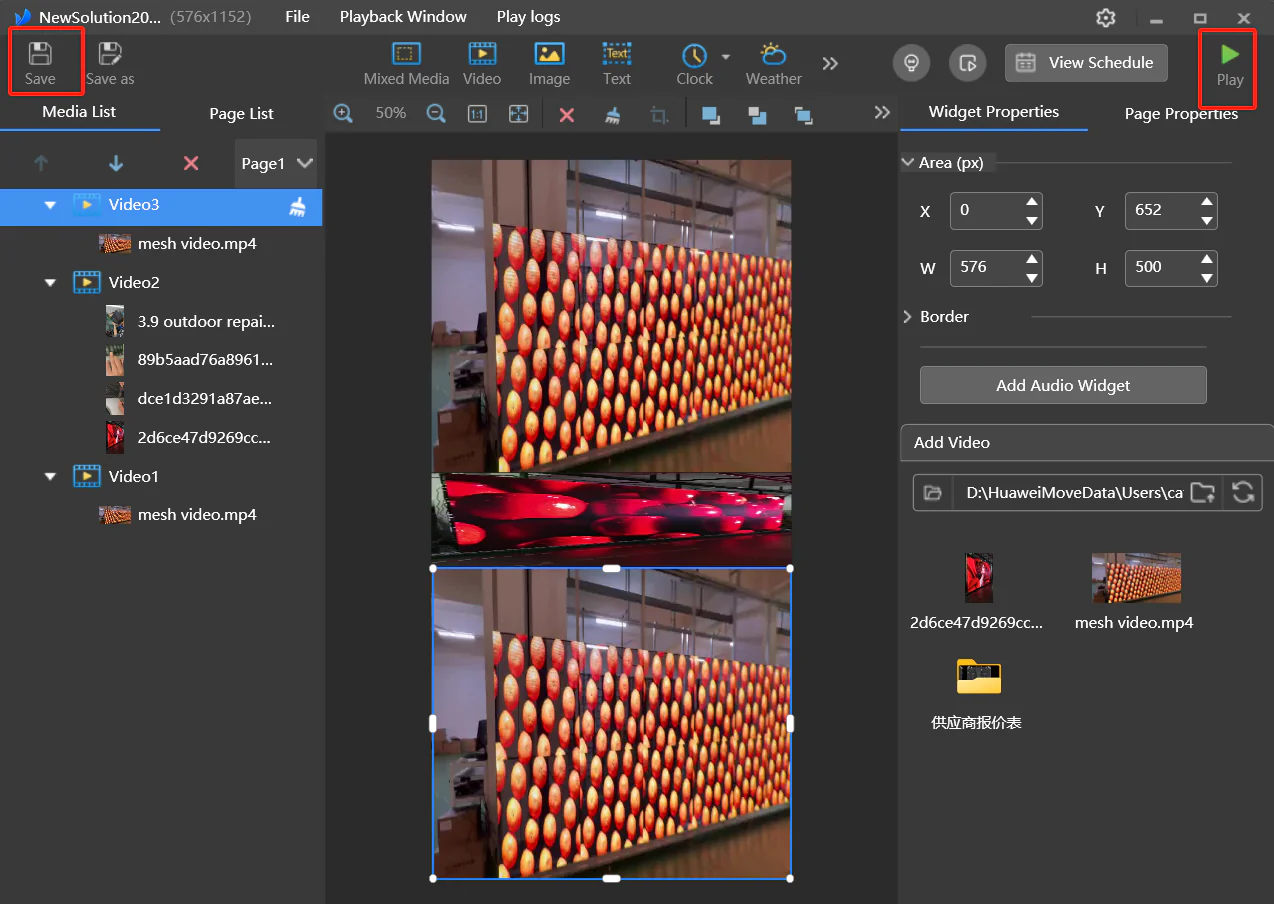
In practice, use this walkthrough to split a video feed across the top and a second feed across the bottom of an LED video wall, with a middle row for a third source. The example uses a 500 × 500 mm P2.6 wall, three cabinets wide and six high, for a 576 × 1152 pixel canvas. You will set the playback window, place three zones, check the math, and verify playback.
Table of Contents
Before You Start
First, confirm four things before you split a video feed. The sending card or processor must be connected and recognized; the source files should match the zone shapes; the cabinet matrix must be known; and the original solution should be backed up.
However, Viplex Express runs on Windows, and menu names change between releases. Record the version and check the official Novastar site for release notes; if the processor and software disagree on output resolution, the wall will scale the image.
Meanwhile, have three media files ready and keep each source at or above its zone’s pixel size, because upscaling cannot add detail.
Case Parameters
Therefore, these numbers drive every coordinate below.
- Cabinet size: 500 × 500 mm
- Pixel pitch: P2.6
- Resolution per cabinet: 192 × 192
- Cabinet layout: 3 panels wide × 6 panels high
- Total resolution: 576 × 1152
For example, if your cabinet is a different size or pitch, calculate the pixels per cabinet first, then replace 576 and 1152 with your canvas.
Step 1–2: Create the Canvas
Step 1: Create a Regular Screen
After that, open Viplex Express in Studio Mode to split a video feed into zones. On the Solution page, click the + tile, choose Regular Screen, and name the solution; do not add content yet.

Step 2: Set the Playback Window
Next, click Playback Window and choose Playback Win… to open Playback Window Settings. Clear Same as desktop, set X = 0, Y = 0, W = 576, H = 1152, and click OK.


Step 3–6: Place the Three Zones
Step 3: Place the Top Video
Then, click Video, add the first widget, set X = 0, Y = 0, W = 576, H = 500, and choose the top feed.

Step 4: Add the Middle Strip
After that, add the middle widget, set X = 0, W = 576, H = 156, and Y = 500 for a clean stack. The screenshot uses Y = 450 and W = 704 because its canvas is 704 × 1056; on this wall, use 576 and 500. If you want a slight overlap, lower Y by 50.

Step 5: Add the Bottom Video
Next, add the bottom widget, set X = 0, W = 576, H = 496, and Y = 656, which is 500 + 156. The screenshot uses Y = 606 and H = 450 on its 704 × 1056 canvas; the logic is the same.

Step 6: Preview and Save
Finally, save, click Play, and check the preview; if a seam appears, adjust Y by one or two pixels until the edges meet.
Zone Math
In practice, once you split a video feed, three formulas prevent most layout errors: canvas width = columns × cabinet pixel width; canvas height = rows × cabinet pixel height; and zone heights must add up to the canvas height. Here, 3 × 192 = 576 wide and 6 × 192 = 1152 high.
Next, divide the height into three bands: top 500, middle 156, bottom 496. Because 500 + 156 + 496 = 1152, the stack fills the canvas. Keep X = 0 and W = 576, then set Y by adding the heights above: top 0, middle 500, bottom 656.
However, if you want the middle strip to overlap the top video, lower its Y to 450 and start the bottom at 606. The rule still holds: bottom Y = top height + middle height, and bottom height = canvas height − bottom Y.
For example, on a 704 × 1056 canvas, use W = 704, top 500 at Y = 0, middle 156 at Y = 450, and bottom 450 at Y = 606; check that 606 + 450 = 1056.
Troubleshooting
First, when you split a video feed, a black screen or no signal usually means the processor output, sending card, cable, or selected source is wrong; check each in that order.
Second, zones in the wrong order come from layer order or Y coordinates; if the bottom feed appears on top, fix its Y value or move the layer.
Third, a stretched image means the zone aspect ratio differs from the source; crop or letterbox instead of forcing 16:9 into a 576 × 156 strip.
Fourth, a seam or overlap means the Y values do not add up; adjust the middle or bottom Y by one or two pixels.
Fifth, flicker or tearing points to mismatched frame rates or refresh; set a common frame rate and avoid mixing interlaced and progressive files.
Finally, content that does not fill the zone means the area W/H or source resolution is wrong; a small source upscales and softens, while a small zone leaves black bars.
Variations
For example, if you split a video feed into two bands, skip the middle strip: top 576 × 576 at Y = 0, bottom 576 × 576 at Y = 576.
Meanwhile, a vertical wall swaps the counts: a 6-wide × 3-high wall gives 1152 × 576, so widths and heights swap.
Also, a different pitch changes pixels per cabinet; a 500 × 500 mm P2.5 cabinet is 200 × 200, not 192 × 192.
However, a 16:9 source in a non-16:9 zone needs a crop or letterbox decision before playback.
Acceptance Checklist
- All three zones play at the same time.
- No gaps, seams, or unintended overlap.
- Source switching works without a black frame.
- The wall recovers after a reboot.
- The solution and configuration files are exported and labeled.
- The layout looks correct from the real viewing distance.
FAQ
Do I need a separate processor to split the screen?
In practice, it depends on the sending card; if it cannot open multiple windows, add a processor or media player and confirm its window count.
Can I split a video feed without Viplex Express?
In practice, other software and processors can do it, but the menus differ; the zone math stays the same.
Does splitting reduce the total resolution?
No. Because the canvas keeps its full pixel count, each zone receives part of it; match the source to the zone, not the whole wall.
Can each zone play different content or a schedule?
In practice, yes, when the player supports multiple windows or playlists; assign a separate source and confirm independent switching.
My canvas is 704 × 1056. What values should I use?
For example, use W = 704, top 500 at Y = 0, middle 156 at Y = 450, and bottom 450 at Y = 606.
